
Xerox & Microsoft OAuth 2.0 : the perfect combination for scanning to email
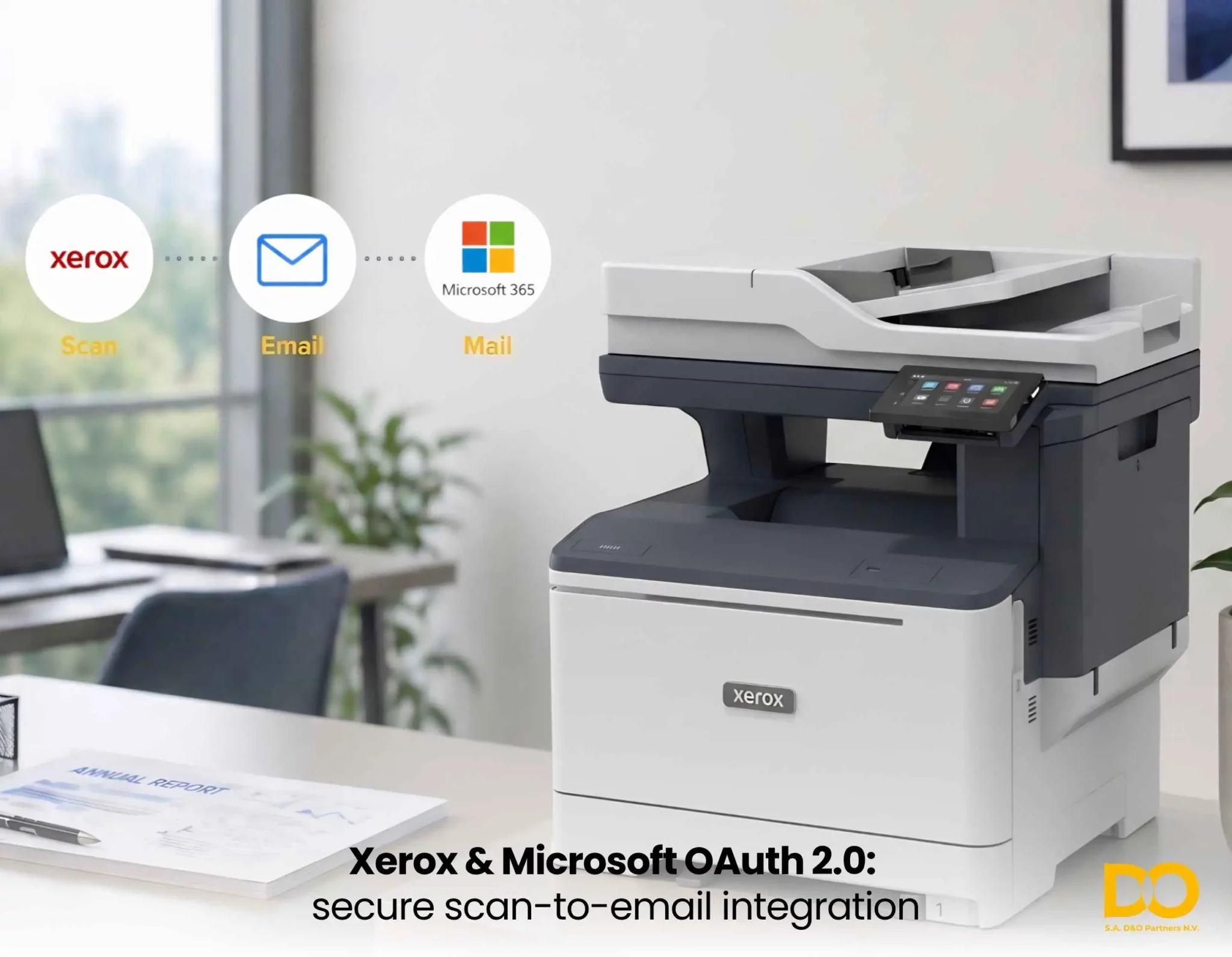
Since the US company permanently disabled basic authentication on Exchange Online and Microsoft 365, many businesses have found themselves facing an immediate operational challenge: their multifunction printers can no longer send scanned documents via email. Xerox machines, widely deployed in Belgian and European businesses, have responded to this transition with native compatibility and simplified configuration based on the OAuth 2.0 protocol (definition and Microsoft information). As a certified Xerox partner, D&O Partners supports its clients through this technical migration with expertise and responsiveness.
The end of basic SMTP authentication: why it changed everything
For years, the ‘Scan to Email’ feature relied on a simple mechanism: the multifunction device would connect to the company’s email server by transmitting a username and password in plain text. This mechanism, known as Basic Auth, worked but posed significant security risks: interception of credentials, lack of contextual control, and incompatibility with modern conditional access policies.
In October 2022, and then definitively during 2023, Basic Auth was disabled across all M365 tenants. As a result, many printing devices that used to scan via the smtp.office365.com servers suddenly stopped working, bringing entire document workflows to a standstill.
According to a 2024 report by Xerox, 68% of European companies encountered problems when migrating to OAuth 2.0.
Three alternatives emerged: an external relay (less secure), direct connection without authentication (subject to strict IP restrictions), or OAuth 2.0 — the modern standard recommended by Microsoft. It is this third option that Xerox has integrated natively into its AltaLink, VersaLink and PrimeLink ranges. Our team of Xerox-certified technicians can help you identify the best approach for your infrastructure.
OAuth 2.0: the modern authentication protocol simply explained
OAuth 2.0 is a standardised authorisation protocol (RFC 6749) that allows an application — in this case, your Xerox multifunction printer — to access a third-party service — in this case, Microsoft 365 — without ever directly handling user credentials. The mechanism relies on a temporary access token generated by Microsoft Entra ID (formerly Azure Active Directory).
For scanning to email on a Xerox machine, the OAuth 2.0 flow works as follows:
- The administrator registers the machine as an ‘application’ in Microsoft Entra ID, generating a Client ID and a Client Secret.
- The machine uses these ID details to request an access token via the Client Credentials flow from the Microsoft endpoint.
- Microsoft Entra ID verifies the assigned permissions (notably Mail.Send via the Microsoft Graph API) and issues a token with a limited lifetime.
- The Xerox machine uses this token to authenticate with the Microsoft Graph API and send the scan as an attachment.
- When the token expires (usually after 1 hour), the machine automatically requests a new one via the refresh token, without any human intervention.
This mechanism completely eliminates the transmission of passwords in plain text and allows administrators to revoke access to the device via the Azure portal without altering the printer settings. If you have any questions about implementation, please contact our technical team.
Xerox compatibility with OAuth 2.0: which models are affected?
Xerox has integrated OAuth 2.0 support into its main business product ranges. Browse our full Xerox catalogue to check availability for your model:
| Range | Representative models | Support OAuth 2.0 |
| AltaLink | C8130 / C8145 / C8155 / B82xx | Native (recent firmware) |
| VersaLink | B415 / C415 / C625 | Native (recent firmware) |
| PrimeLink | C9265 / C9070 | Native |
| EC / WorkCentre | Previous generations | Via relay or firmware update firmware |
It is essential to check and update the firmware version installed on your device. Xerox regularly releases updates that enhance OAuth 2.0 compatibility. As part of our maintenance contracts, D&O Partners proactively monitors firmware updates for your entire fleet.
Step-by-step guide: Enabling OAuth 2.0 on a Xerox device with Microsoft 365
The setup process is divided into two parts: registering the application in Azure AD, and configuring it via the machine’s web interface (embedded web server).
Step 1 — Registering with Microsoft Entra ID
- Sign in to the Azure portal (portal.azure.com) using a global administrator account.
- Navigate to Microsoft Entra ID > Application registrations > New registration.
- Name the application (e.g. ‘Xerox-Scan-Email’) and select the account type (tenant only).
- Make a note of the Application (client) ID and Directory (tenant) ID displayed after creation.
- Under Certificates and secrets, create a Client Secret and make a note of its value immediately (it cannot be retrieved later).
- Under API permissions > Microsoft Graph > Application permissions, add Mail.Send, then grant administrator consent.
Step 2 — Configuring the Xerox Embedded Web Server
Go to your multifunction printer’s web interface (enter the IP address in your browser) > Applications > Email > SMTP Settings:
- Server: smtp.office365.com | Port: 587 (STARTTLS)
- Authentication method: OAuth 2.0
- Sending email address: The Microsoft 365 address from which scans are sent
- Client ID / Client Secret: Values copied from Entra ID
- Tenant ID: Your Azure Directory ID
- Token URL: https://login.microsoftonline.com/{tenant-id}/oauth2/v2.0/token
- Scope: https://graph.microsoft.com/.default
Once registered, use the built-in test button to verify the connection. If an error occurs, the Embedded Web Server logs (Troubleshooting > Logs) will provide specific error codes. Our D&O Partners technicians can take remote control to resolve any issues quickly.
The real benefits for your business
Beyond technical compliance, adopting OAuth 2.0 on your Xerox equipment offers measurable benefits:
- Enhanced security: no passwords are stored in plain text on the device or transmitted over the network. Tokens are ephemeral and can be revoked at any time.
- Conditional Access compatibility: apply rules based on location, device type or risk level, even for your print jobs.
- Traceability and auditing: every access event is logged in Entra ID, simplifying your ISO 27001, GDPR and NIS2 compliance audits.
- Simplified maintenance: if an employee leaves, revoke their access from Azure without altering the device settings.
- Future-proofing: OAuth 2.0 is the Microsoft standard for all application access. Your infrastructure is ready for future updates to M365.
D&O Partners: your partner for a smooth migration
Migrating to OAuth 2.0 is perfectly manageable with the right support. As a certified Xerox reseller and integrator, D&O Partners has the necessary expertise to work across all product ranges — AltaLink, VersaLink, PrimeLink — in a variety of M365 environments: hybrid tenants, on-premises Exchange with a connector, and advanced conditional access policies.
We offer a complete audit of your printing fleet to identify which machines require a firmware update, which can be configured directly, and which require an alternative approach (secure SMTP relay for end-of-life equipment). This audit is included in our service and maintenance package.
Our commitment: your document infrastructure remains operational, secure and compliant — without your IT teams having to shoulder the complexity of these changes alone.
Conclusion
The compatibility of Xerox machines with Microsoft’s OAuth 2.0 authentication provides a practical, proven solution to modern security requirements. Whether you manage a few printers or dozens of multifunction devices, this transition is essential if you wish to continue using the scan-to-email feature with M365.
Xerox has chosen to integrate this protocol natively, making configuration straightforward and maintenance sustainable. With D&O Partners by your side, this migration becomes an opportunity to secure and optimise your entire document infrastructure.
Frequently asked questions
Why has my scan-to-email feature suddenly stopped working?
This has been the most frequently asked question since 2023. The main reason is the phased-out support for Basic Auth (basic SMTP authentication) on Exchange Online and M365. Until now, your multifunction printer has been using a plaintext username and password to send scans — this method is no longer accepted by the cloud platform. The recommended solution is to migrate to OAuth 2.0. If your Xerox machine is a recent model (AltaLink, VersaLink, PrimeLink), this migration is possible without replacing the hardware. Contact D&O Partners for an immediate diagnosis.
My Xerox printer is quite old and doesn’t have the OAuth 2.0 option in its settings. Is it unusable?
Not necessarily. There are two alternatives for devices that do not natively support OAuth 2.0. First option: check whether a recent firmware update adds this compatibility — Xerox has rolled out updates for many models still in use. Second option: configure an SMTP relay via an Exchange Online connector, which allows sending from a fixed IP address without OAuth authentication. This second approach remains functional but requires a static public IP address and precise DNS/SPF configuration. Our D&O Partners technicians will guide you towards the solution best suited to your equipment.
What is the difference between the Device Code Flow and the Client Credentials Flow when configuring OAuth 2.0 on a Xerox device?
Xerox offers two OAuth 2.0 flows depending on the model. The Device Code Flow (DCF) requires an administrator to authenticate once via a browser to authorise the machine: this is the simplest method to set up, as it does not require manually creating an application in Entra ID. The Client Credentials Flow (CCF), described in this article, is more advanced: the machine authenticates itself entirely autonomously using a Client ID and a Client Secret, without any human interaction. The CCF is preferable in enterprise environments subject to strict conditional access policies. Ask our experts for advice.
The OAuth 2.0 connection test works on my Xerox, but sending the scan still fails. Why is that?
This is a problem frequently reported on IT forums. The most common causes are: (1) the Mail.Send permission has not been granted by the administrator in Entra ID — the test passes but the actual sending is blocked; (2) a conditional access policy is blocking non-compliant devices (Intune, geolocation); (3) the email account used belongs to a Business or School account that requires prior consent from the tenant administrator via xerox.com/OAuth2-email-admin-consent. The Embedded Web Server logs (Troubleshooting section) provide the exact error code. Our team can analyse these logs remotely.
Is an active M365 licence required for the email account used by the Xerox scanner ?
Yes, as part of the Client Credentials Flow with Mail.Send via the Graph API, the mailbox used must have an active Exchange Online licence (Exchange Online Plan 1 or higher). An account without an active mailbox cannot be used as the sender. A cost-effective alternative is to use a shared mailbox, which does not require a dedicated licence if it is associated with a tenant that already has active licences — this is common practice for multi-user printing fleets. See our Xerox solutions catalogue to find out more.
My Xerox device sends scans internally but not to external email addresses. How can I resolve this issue?
This behaviour is typical of a Direct Send configuration, which uses port 25 without authentication and only allows emails to be sent to domains hosted within your tenant. To send to external recipients, you must either switch to an authenticated SMTP relay via OAuth 2.0 (port 587), or configure an Exchange email connector that explicitly authorises outward relaying. In the latter case, the machine’s public IP address must be declared in the connector. Our D&O Partners experts configure these connectors as part of our on-site support.
Can D&O Partners handle the entire OAuth 2.0 migration for our Xerox fleet?
Yes, this is precisely one of our flagship services. D&O Partners handles everything from start to finish: preliminary audit of the fleet, firmware updates, configuration of each machine via the Embedded Web Server, validation tests and documentation. For large fleets, we offer batch deployments to minimise the impact on your business. This service can be included in a global maintenance contract or carried out as a one-off project. Request a free quote.
Would you like to assess the compatibility of your Xerox fleet with OAuth 2.0? Contact D&O Partners for a free audit of your printing infrastructure.